Workflows Talk to your backlog
Say it once. It lands in your backlog.
Ideas show up when your hands are full. This is the whole path from a spoken sentence to a row in a Notion database, on the phone, with nothing installed and nothing to pay for. Then a second half that clears the pile for you.
- Cost
- $0 a month, forever
- Apps to install
- None. Shortcuts ships with iOS
- Time to build
- About 20 minutes, once
- Speech
- Transcribed on the phone, not sent anywhere
Part 0. Get the two values Notion will ask for
Do this first, on a computer, because you need both values in hand before the Shortcut will do anything but fail. It takes about five minutes and you never touch it again.
- 01
Make an integration. Go to notion.so/my-integrations and choose New integration. Give it any name, pick the workspace the database lives in, and set the type to Internal. Under capabilities it needs Insert content; it does not need read or update for this. Save it, then open it and copy the Internal Integration Secret. It starts with
ntn_.That secret is a password with write access to whatever you connect it to. Keep it out of screenshots, out of chat, and out of anything you share. If it leaks, hit Rotate on the same page and paste the new one into the Shortcut.
- 02
Let it into the database. Open the Notion database you want the notes in. Top right, the ··· menu, then Connections, then Connect to, and pick the integration you just made. Skip this one step and every post comes back
404with an object-not-found message, which reads like a wrong ID and is not. - 03
Get the database ID. Open the database as a full page and look at the URL. It goes
notion.so/then an optional workspace name, then a 32-character string of letters and numbers, then?v=and another one. You want the first one, before the question mark. The one after?v=is the view, and using it by mistake is the other common 404.If the URL puts hyphens in it, keep them or drop them; the API takes both. On the phone, the same ID is under Share, then Copy link.
You should now have two things written down: a secret starting ntn_, and a 32-character database ID. Keep them somewhere you can paste from on the phone. A note to yourself works; you will delete it in a minute.
Part 1. A four-action Shortcut
Apple's Shortcuts app can transcribe your voice on the phone and POST straight to the Notion API. No middle service, no Zapier, no recorder app. Open Shortcuts, tap + to make a new one, and name it something you would say out loud, because that name becomes the Siri phrase. Mine is called Note To Backlog.
Then add these four actions, in this order. To add one, tap the Search Actions bar at the bottom and type the name in bold below.
-
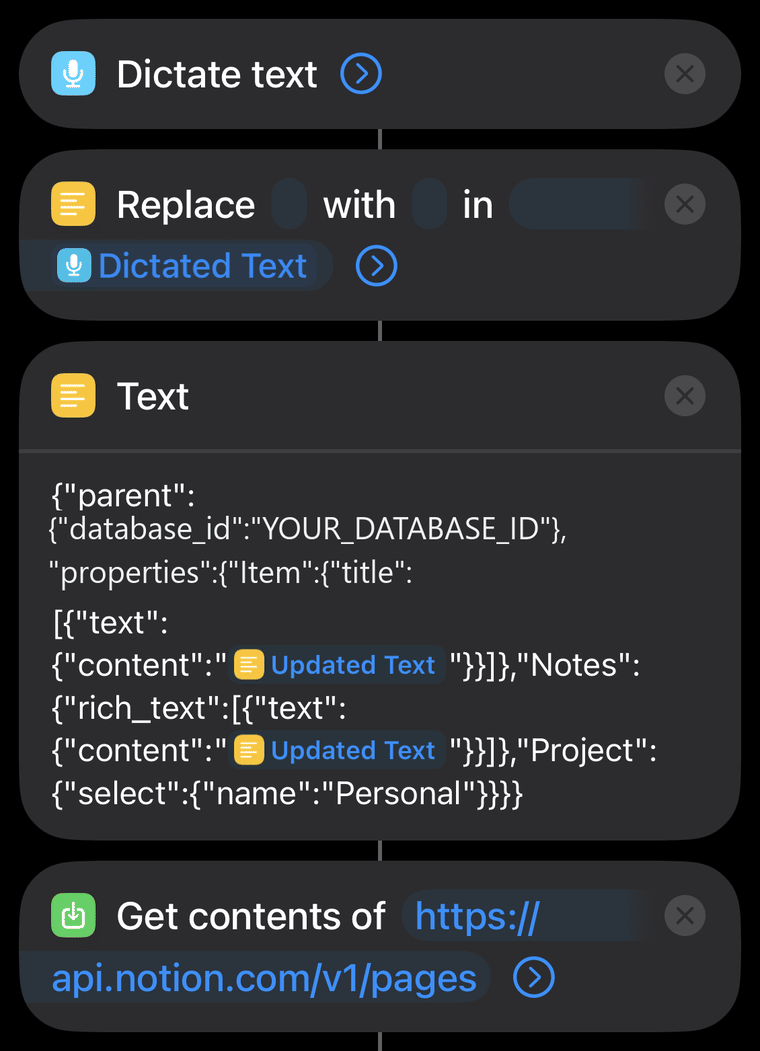
Dictate the note Dictate Text
Search for Dictate Text and add it. This runs the same on-device speech engine as the microphone key on the keyboard, so nothing is uploaded and it works on a plane.
Tap the small arrow on the right of the action to expand it. Two settings:
- Language: whatever you speak. It defaults to the phone's language, so usually you can leave it.
- Stop Listening: set it to After Pause. The default is After Short Pause, which cuts you off mid-sentence when you stop to think. On Tap makes you reach for the screen again, which defeats the point.
This action produces a variable named
Dictated Text. You will use that name in the next step.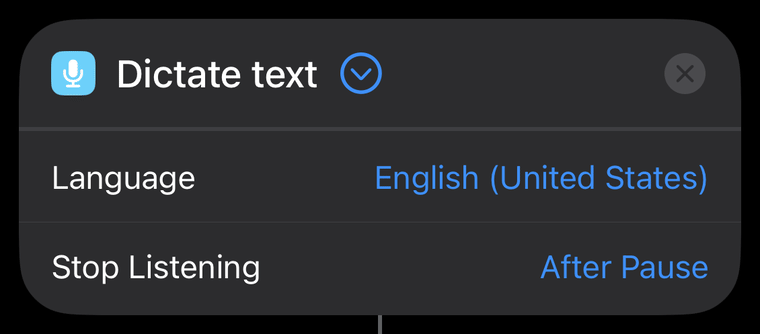
Both settings live behind the arrow on the action itself. -
Clean it for JSON Replace Text
Search for Replace Text and add it. The action reads as a sentence: Replace [find] with [replace] in [input]. Three fields, and the order you fill them in matters less than getting all three.
Field 3, the "in" box
Tap it. A bar of available variables appears above the keyboard. Pick Dictated Text. Do not type the words: it has to be the blue variable chip, or the action runs on the literal string.
Expand the action first
Tap the arrow to open its settings and turn Regular Expression on. Leave Case Sensitive alone, it makes no difference here. If Regular Expression is off, the next field is read as five literal characters and matches nothing.
Field 1, find
["\n]That is a character class: match a double quote, or a line break. Both are the things that will break the JSON you are about to build.
Field 2, replace with
Press the space bar once. One space, nothing else. The box will look empty afterwards, which is correct and is why this step gets skipped.
This is the step that saves you. Say the word "quote" out loud, or dictate two sentences with a pause between them, and without this action the request body stops being valid JSON and the post fails with a message that points at the wrong thing entirely.
The output of this action is a variable named
Updated Text.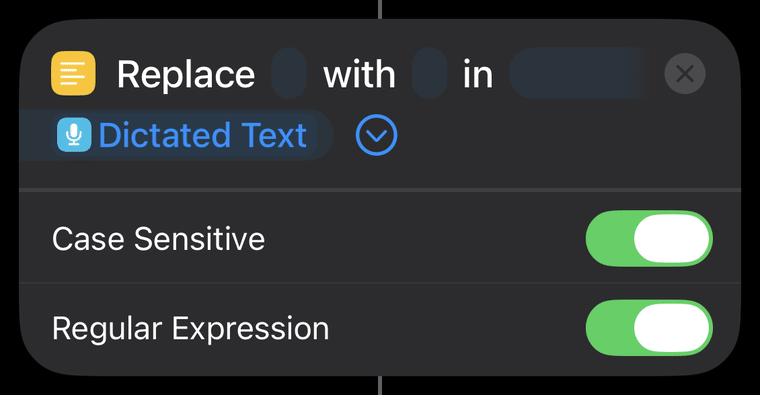
Regular Expression has to be on. The find and replace boxes read as narrow empty capsules at this size, which is what a short pattern and a single space look like. -
Build the request body Text
Search for Text and add it. This is a plain text box; it holds the JSON that Notion expects. Copy the block below, paste it into the box, then make three edits to it.
Text action, paste this
{"parent": {"database_id": "YOUR_DATABASE_ID"},
 "properties": {
   "Item":    {"title":     [{"text": {"content": "SPOKEN"}}]},
   "Notes":   {"rich_text": [{"text": {"content": "SPOKEN"}}]},
   "Project": {"select": {"name": "Personal"}}
 }
}
The three edits, in order:
- Replace
YOUR_DATABASE_IDwith the ID from Part 0. Keep the quotes around it. - Replace each
SPOKENwith theUpdated Textvariable from step 2. Select the word, delete it, then tap Updated Text in the variable bar above the keyboard so a blue chip drops in. Keep the quotes on either side of it. Both places, and it is easy to get one and miss the other. - Change the property names if yours differ.
Item,NotesandProjectare the columns in my database, spelled exactly as Notion has them, capitals included. If yours are called something else, edit the JSON, not the database. If you have no Notes column, delete that whole line including its trailing comma.
Everything in that block is literal text except the two variable chips. If you type the words "Updated Text" instead of inserting the variable, every row in Notion will be named Updated Text and nothing will look broken.
- Replace
-
Send it to Notion Get Contents of URL
Search for Get Contents of URL and add it. Put this in the URL field:
https://api.notion.com/v1/pagesThen tap the arrow to expand it, because everything that matters is hidden in there.
Method
Change GET to POST. Nothing works until you do, and the action gives no hint.
Headers, three of them
Tap Add new header three times. Each one has a left box for the key and a right box for the value. Paste both rather than typing them: a typo in a key is the single most expensive mistake on this page, and it does not announce itself.
Header 1, key then value
AuthorizationBearer ntn_YOUR_SECRETPaste your own secret in place of
ntn_YOUR_SECRET, and keep the wordBearerand the space after it.Header 2, key then value
Notion-Version2022-06-28Pin that date. It is the API version that still accepts
database_iddirectly, which later versions replaced with data sources. Nothing forces you to upgrade.Header 3, key then value
Content-Typeapplication/jsonThis is the one that cost me an hour. The error a typo here produces points somewhere else entirely; there is more on it below.
Request Body
Change it from JSON to File. A File row appears underneath; tap it and pick the Text variable from step 3.
This looks wrong and is right. Shortcuts' own JSON body builder wants you to enter the structure field by field, which cannot hold a nested array. Handing it the finished text as a file sends exactly the bytes you wrote.
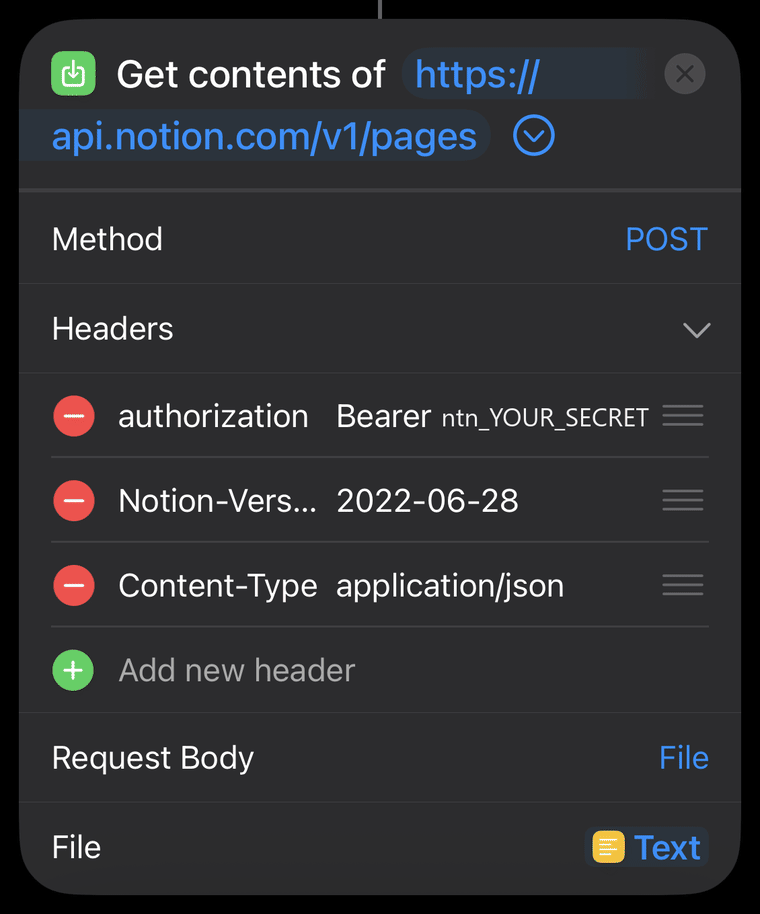
The finished action. The token in the authorization row has been replaced with a placeholder in this image.
Run it once before you trust it
Add a fifth action, Quick Look, at the very end, and leave it there until the whole thing works. It puts Notion's reply on screen instead of swallowing it. Then tap play and say a short test sentence.
It worked if Quick Look shows a wall of JSON starting with "object": "page". Go and look at the database; the row is there. Now delete the Quick Look action, because you do not want a screen of JSON every time you talk to your phone.
It did not if you get a short error object instead. What each one actually means:
- 401unauthorized. The token is wrong, or the word
Bearerand its space are missing in front of it. Re-copy the secret from the integration page. - 404object_not_found. Nearly always the connection step, not the ID. Open the database, ···, Connections, and confirm your integration is listed. If it is, check you took the ID from before the
?v=and not after it. - 400validation_error. The body is malformed or a property name does not match the database. Read the message; it names the property it choked on. If it complains about
parent.database_idwhen the ID is clearly right there, read the next section.
The bug that cost me an hour
The POST kept returning 400: provide a parent.database_id even though the ID was right there in the body. The cause was a one-letter typo in a header key: Context-Type instead of Content-Type.
Without a valid content type Notion never parses the body at all, so it behaves as if the body were empty and blames the first required field it cannot find. The error names the last thing you should be looking at.
What broke it open was the Quick Look action from the section above. For an hour I was guessing, because a failed run just ends and tells you nothing. Quick Look put Notion's actual reply on the screen, and reading provide a parent.database_id word for word was what made me stop re-checking the ID and start re-checking everything around it. Leave that action on until the thing works. The error it shows is the whole difference between a five minute fix and an afternoon. If a 400 still makes no sense once you can read it, go through the three header keys character by character before you touch the JSON.
Make it reachable without opening the app
A capture tool you have to go and find is a capture tool you stop using. Three ways to fire it, in the order I would set them up:
- Say it. "Hey Siri, Note To Backlog", using whatever you named the Shortcut. No setup, it already works. This is why the name should be something you would actually say.
- Back Tap. Settings, Accessibility, Touch, Back Tap, then Double Tap and pick the Shortcut. Two taps on the back of the phone, in a pocket, with gloves on.
- Home Screen. In Shortcuts, the ··· on the Shortcut, Share, Add to Home Screen. Useful mainly as a reminder that it exists.
Once one of those is set up, delete the note where you pasted the token and the database ID. They live in the Shortcut now.
Part 2. The backlog only works if something empties it
Cheap capture fills a database fast, and a pile you never process is just a different kind of clutter. The other half of the loop is an agent session pointed at the same database, told to do only the work that needs no decision from you.
Four rules is the whole of it:
- Read the queue first. The agent reads the backlog database and the live task list in one pass, so it never restarts something already open or already done.
- Keep only the zero-involvement items. Research, write-ups, plans, local code edits. Anything that needs your accounts, your money, or a phone call gets set aside instead of half-attempted.
- Two at a time. It runs at most two sub-agents at once, each following the target project's own rules, with a separate agent reviewing any code before it is saved.
- Delete or escalate, never leave it. Finished rows come out of the backlog. Anything that genuinely needs you becomes a task with a one-line reason, so nothing quietly disappears.
Why this shape
The obvious version of this buys an app or a paid automation tier. This one reuses three things you already have, the phone's speech model, a database, and an agent, and spends nothing. Capture has to be frictionless or the notes never get made. Clearing has to be automatic or the notes never get done. Build both halves or neither one is worth having.
Want the agent half done properly
The second half of this is a Claude Code session with rules written down so it behaves the same way every time. The free house rules tool builds that file for you in a few plain questions, with nothing to install.
Build your rules file →